Back to the “Advanced upload” in admin manual
Example 6 - Map with glyphs#
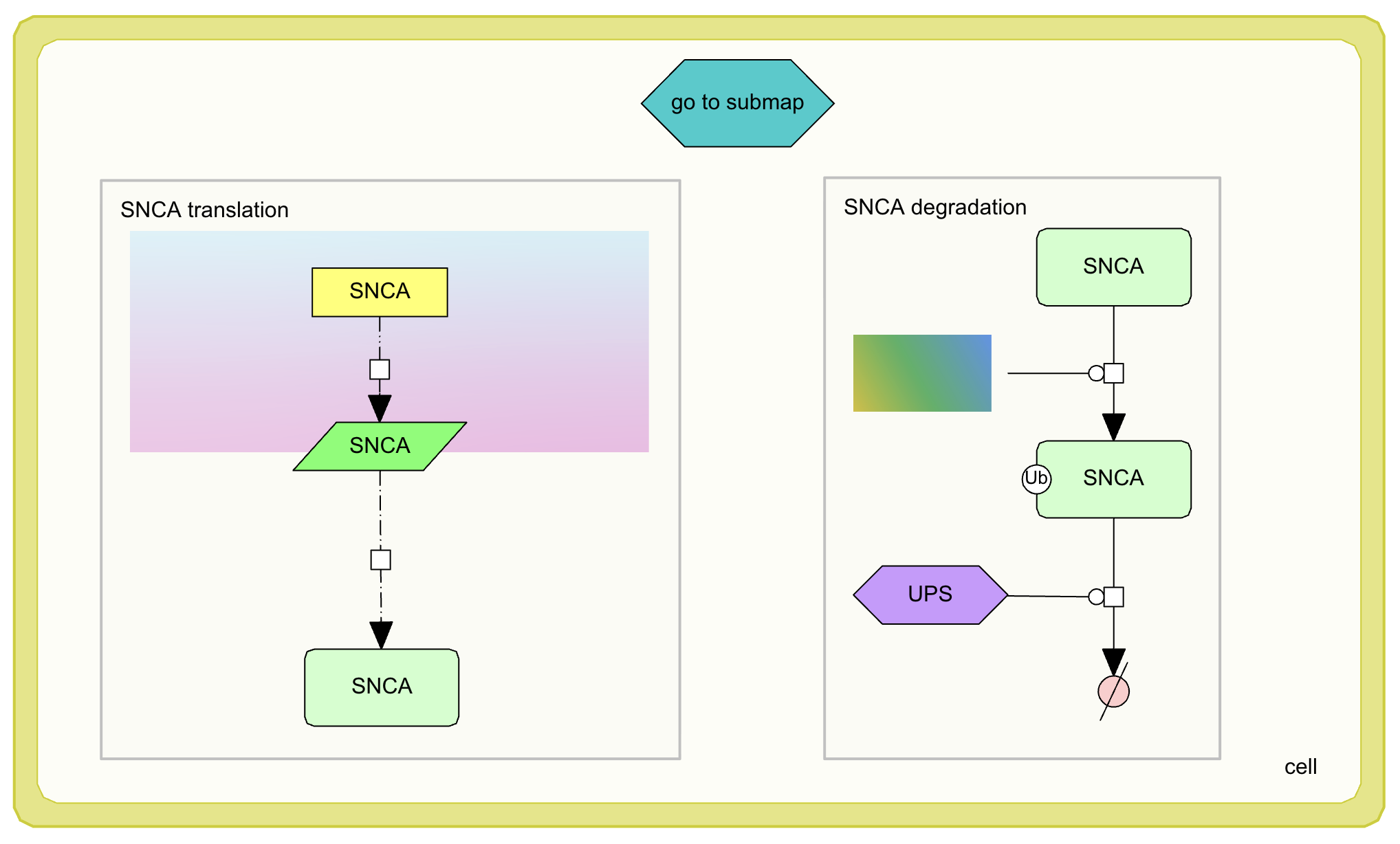
Glyphs allow to colour elements or compartments with custom images. The extension of the images have to be PNG and the files have to be inside directory named glyphs.
The images are assigned to the elements either via:
- user interface (recommended), see element glyphs
config.json, by defining elements coloured by glyphs viacustom_elements, see file example below.
{
    "maps": [
        {
            "custom_elements": [
                {
                    "element_id": "ca1",
                    "immediate_link": null,
                    "glyph_file_name": "glyphs/g1.png",
                    "submap": null
                },
                {
                    "element_id": "sa11",
                    "immediate_link": null,
                    "glyph_file_name": "glyphs/g2.png",
                    "submap": null
                }
            ],
            "default_center_x": null,
            "default_center_y": null,
            "default_zoom_level": null,
            "max_zoom_levels": 2,
            "creation_date": null,
            "name": "example_glyph_map"
        }
    ],
    "sbgn": false,
    "disease": null,
    "organism": null,
    "name": "glyphs-map",
    "version": "",
    "notify_email": "",
    "custom_license_name": null,
    "custom_license_url": null,
    "source_git_repository": null,
    "source_git_branch": null,
    "license": null
}
Download the example of the map coloured with glyphs and upload it to the MINERVA Platform. That file is an archive, which contains:
- two images in the glyphs directory,
- the CellDesigner map
config.jsonwith glyph assignment to elements
Glyphs can be used both to colour submap and main map (if a project is advanced).
See below the properties of the glyphs map:
- Compartment nucleus is coloured by glyph g1.
- Protein PRKN is coloured by glyph g2