Back to the “Advanced upload” in admin manual
Example 4 - Advanced file upload#
Click here to download the advanced map. It is a .zip archive with the following structure:
- advanced_map_example.xml: CellDesigner file with the main map
- images: folder, for the Show overview function, containing:
- image files: overview_main.png and overview_sub.png
- coords.json: file linking the images and the content of the map
- overlays: folder with the overlays loaded by default, containing a text file overlay example.txt
- submaps: folder with submaps for this project, containing one submap - CellDesigner file submap_example.xml
config.json: a config file linking the main map and the submap, and providing initial configuration parameters on project upload
Upload steps#
- Upload the file
-
Load the advanced map to your MINERVA instance using the Choose file button in Create project and examine the upload window. Note that additional sections have appeared.
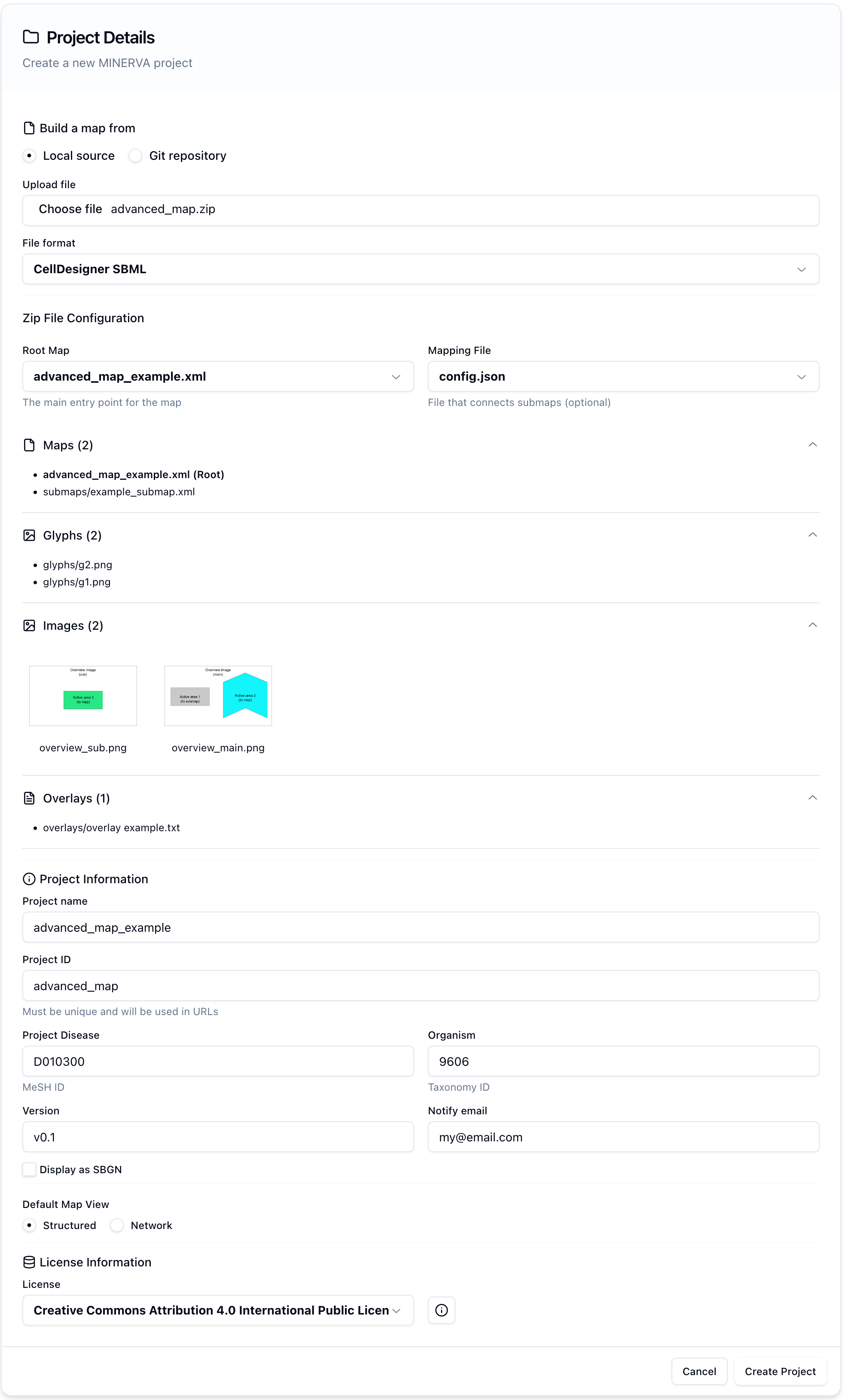
- Maps
-
All diagram files are listed, with Root map indicating the main diagram of the project.
::: info-box
Note
Mapping file is optional and primarily for backwards compatibility. Earlier mapping of links between diagrams was provided in a separate file. Now, and in this example file, mapping is provided via
config.json. ::: - Images
- This section lists images for Browse overview images functionality.
- Overlays
- This section lists automatically uploaded overlays. Their names and descriptions are taken from overlay metadata (see data overlay example)
Upload results#
Overlays#
- Overlay files
- One predefined overlay in General overlays named Overlay example is available for non-registered users.
Overlays in submaps
- Upon switching to a custom colouring (Overlays tab) contents of the submap_example are coloured as the contents of the main map.
- go to submap element in the main map has a horizontal colouring. This is because go to submap is a direct link to a submap and visualises the colouring pattern of that submap.
Submap files#
- In the Submaps tab, the uploaded submap_example is visible.
- In the Search tab, if you look for PRKN or SNCA, the results in both main map and the submap will be shown.
- go to submap element in the main map links directly to the submap. In the left panel there is a button allowing to directly open the linked submap.
Images#
Images were provided and configured via the coords.json, thus:
- Show overview button is displayed, invoking one of the uploaded images.
- Links between the images and links to the map are configured.
- The link from Active area 3 invokes a search query and highlights interactions in the (sub)maps.