Search#
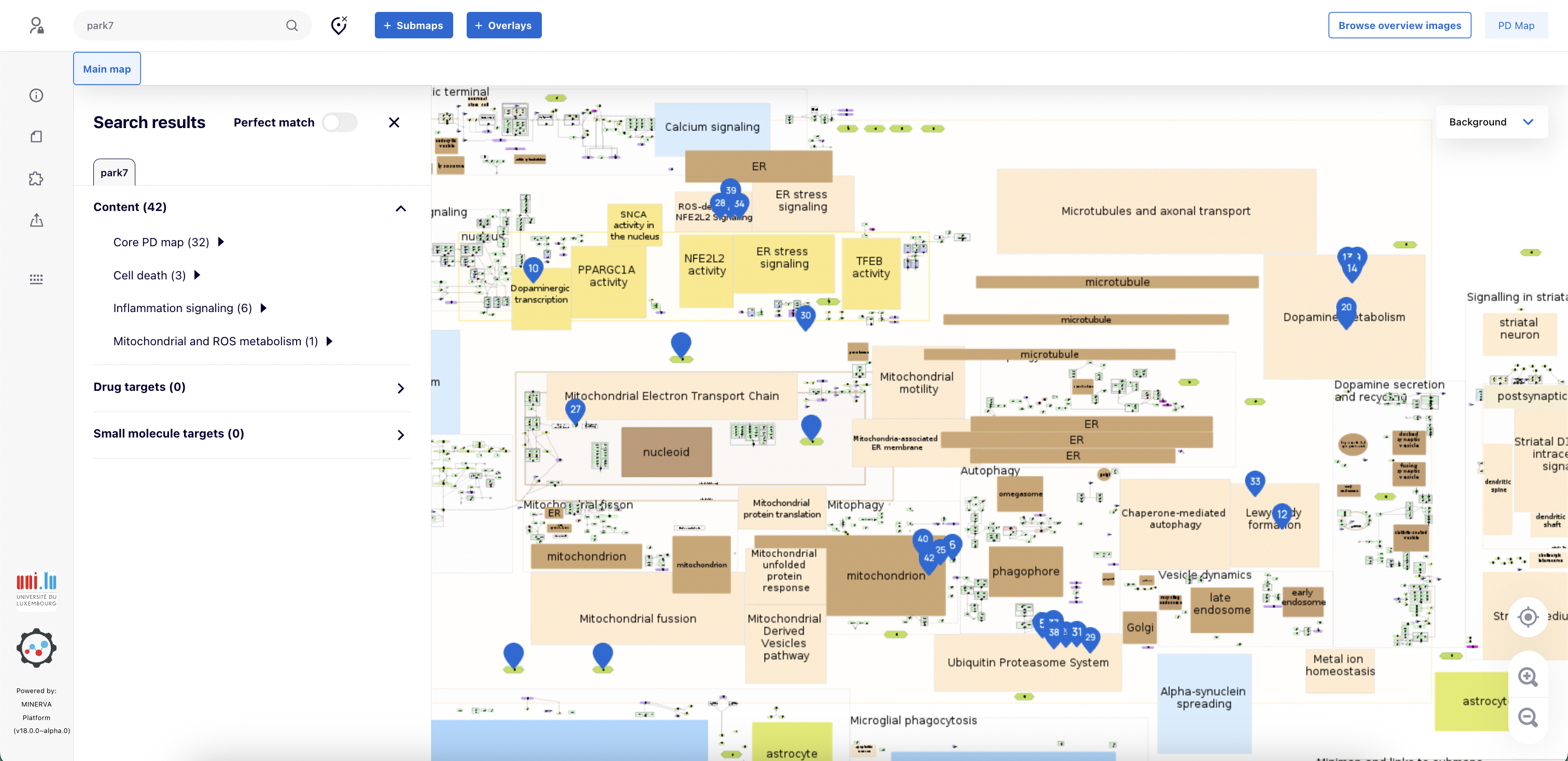
The search bar allows the user to find specific elements, interactions, or targets on the map. The results of the search are marked with clickable pins.
Pins are divided into 4 categories, blue pins (with numbers) for Content, orange pins for Drug targets, green pins for Small molecule targets, and blue pins (without numbers) are result pins for a submap.
Search results are grouped into these categories:
Content - Any part of disease map diagrams (the main map and the submaps) with a name or annotations matching the search query.
Drug/Small molecule targets - For the drug matching the query, a list of its targets (HGNC symbols) reported by OpenTargets will be returned. For the small molecule (chemical) matching the query, a list of its targets reported by CTDbase will be returned. Pins indicate elements of disease map diagrams annotated with HGNC symbol on the list of targets.
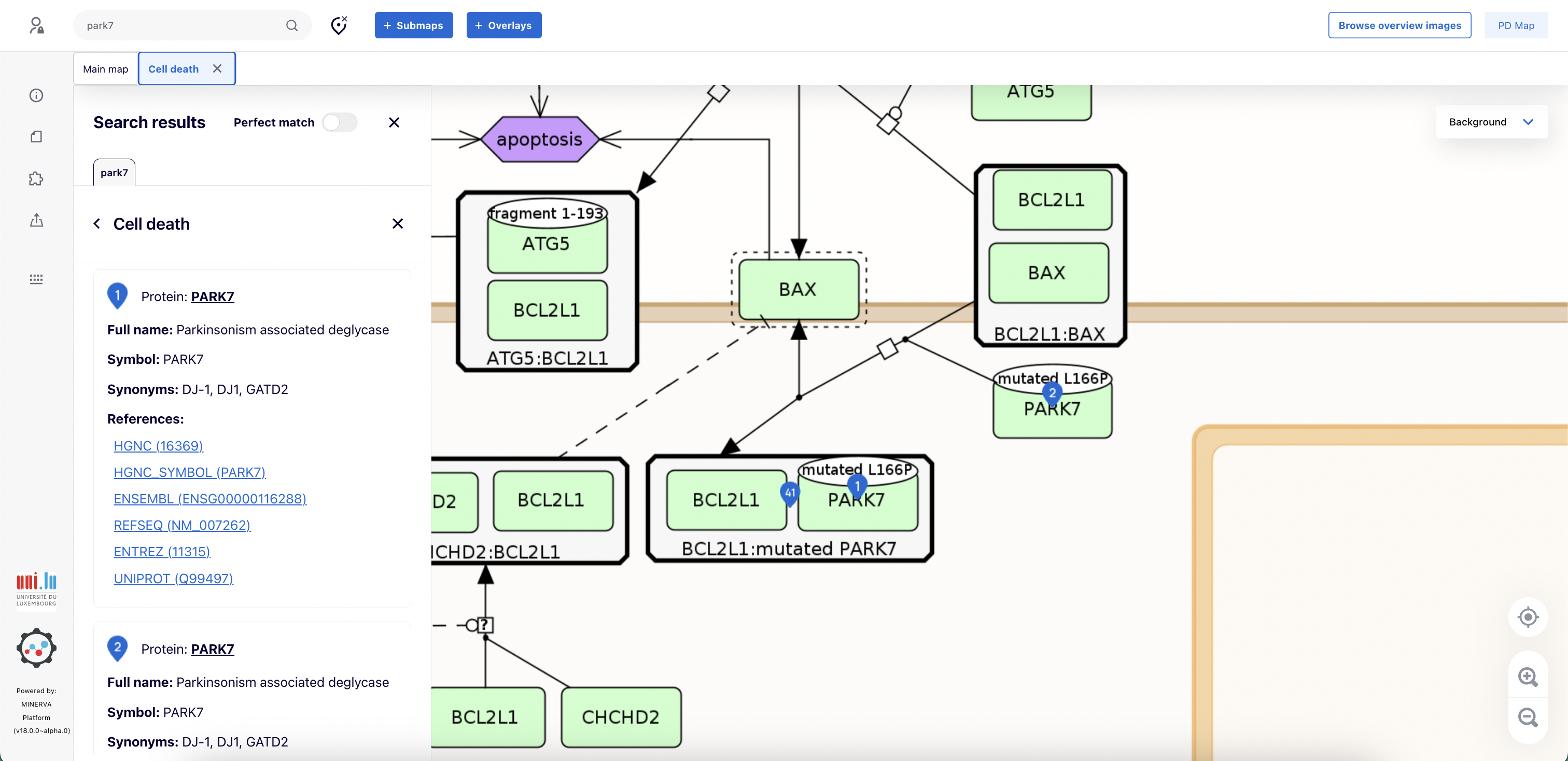
Clicking on each submap will open a new tab displaying the submap with the search result pins. It also reveals detailed information about specific elements or interactions, such as the element’s compartment and full name, symbols, annotations, and their references (either automatic or curator-provided).
Perfect match#
When perfect match is off, the search returns elements whose names contain the query within their name. When perfect match is on, only elements whose names exactly match the query are returned. This means that enabling perfect match narrows down the results to exact matches only. For large networks or broad queries, the search results may be capped to ensure system performance. The limit for displaying search results can be configured by the administrator (see configuration).
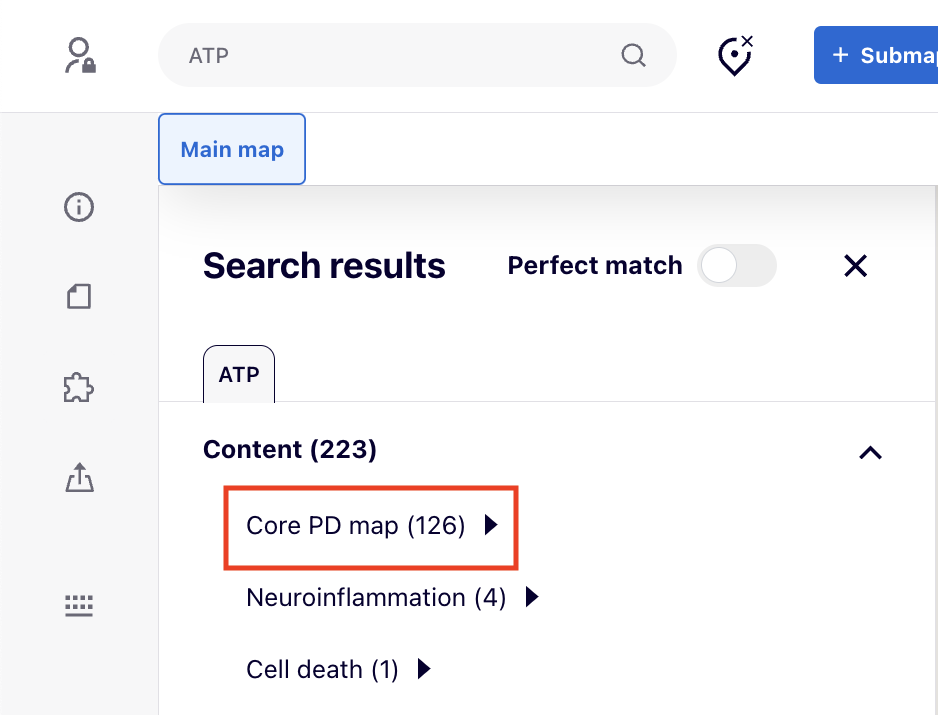
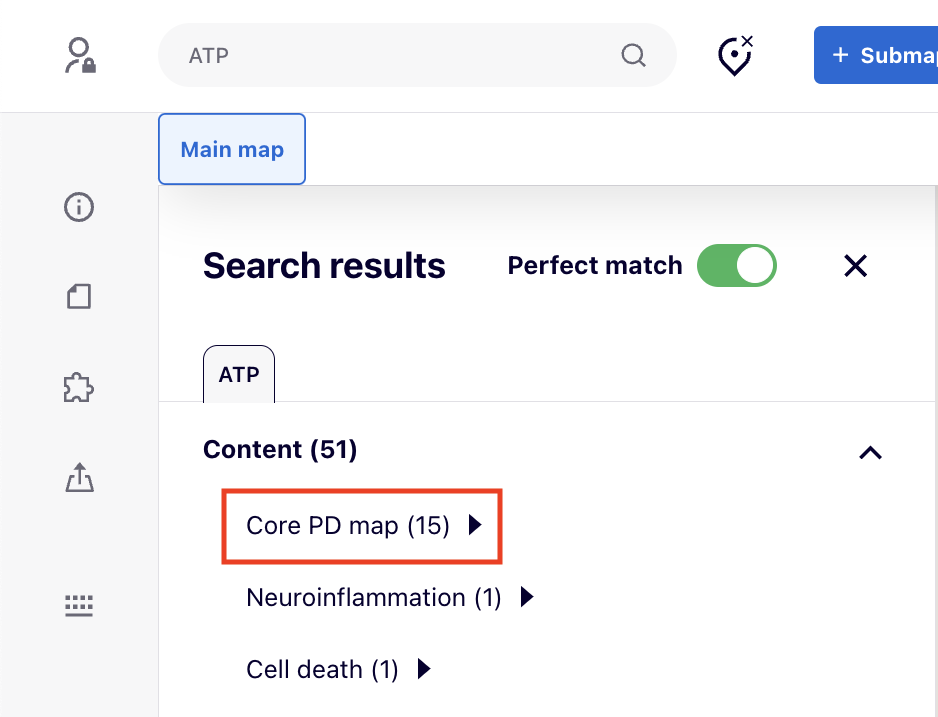
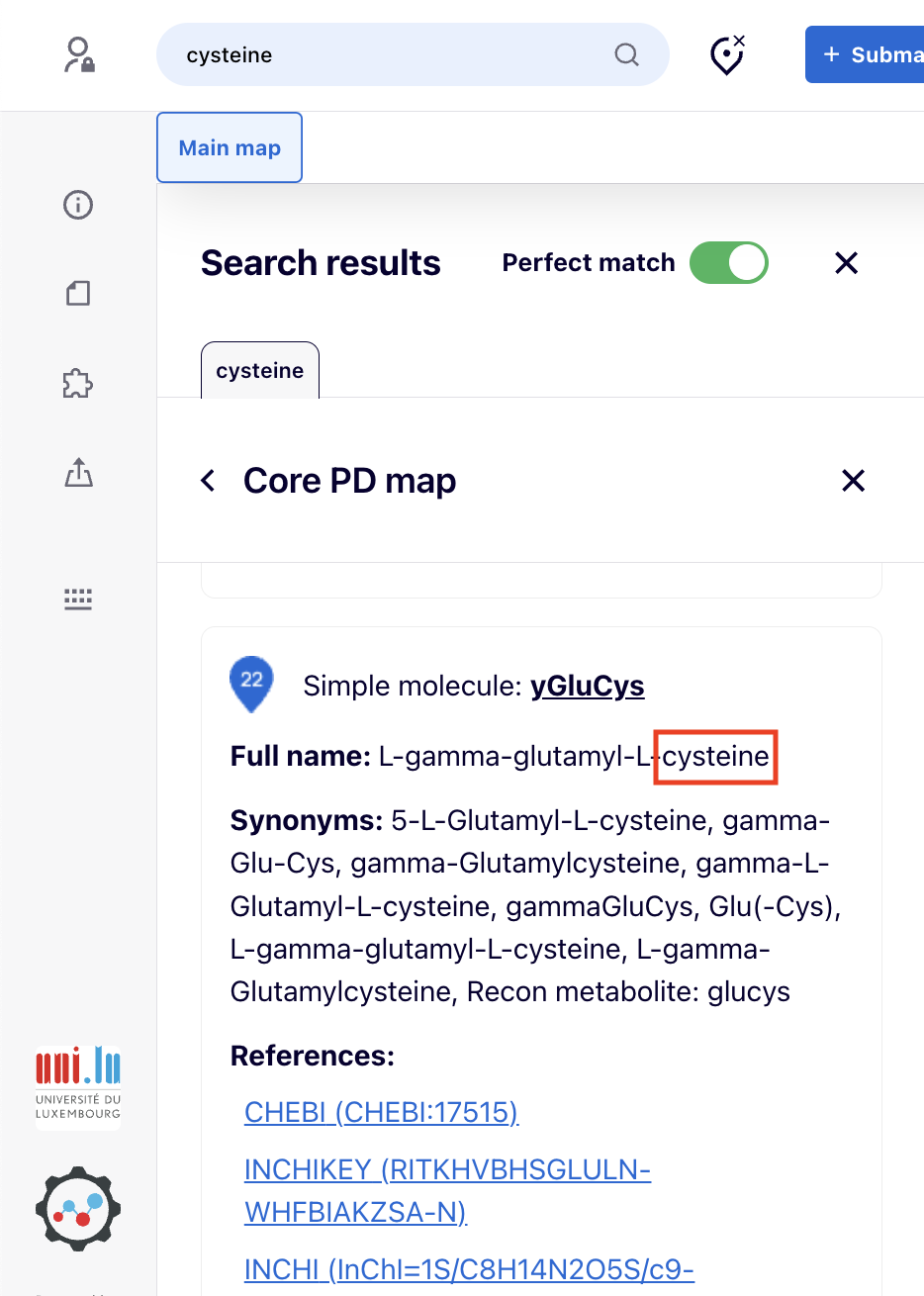
For instance, if user searches for “cysteine” without enabling perfect match, the search results will include “cysteine”, “cysteine metabolism”, “cysteine synthesis”, and any other elements containing “cysteine” in their name. With perfect match enabled, only elements named exactly “cysteine” will be returned.
Different types of search#
There are different types of searching available for users:
Multiple search#
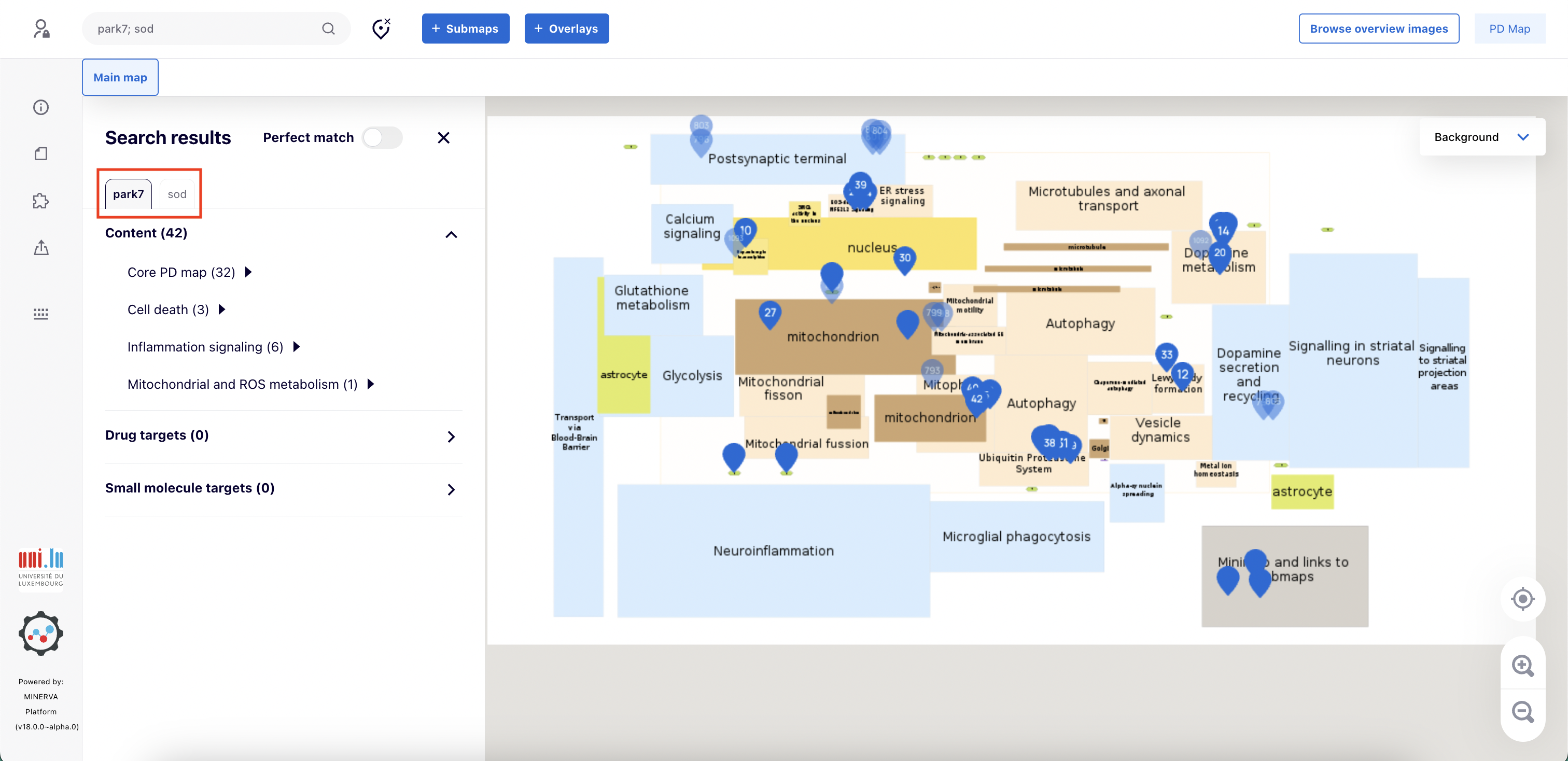
If user wants to search for more than one element, they have to separate the queries with a semicolon ‘;’ (e.g. park7; sod). Search results for separate terms will be visible in separate tabs (e.g., in the image below, the transparent pins belong to the other search results which here is sod ).
Identifier search#
User can search directly for an identifier of element. The query looks like annotator's name:identifier e.g. hgnc:14581.
Search for reaction#
User can also search for a reaction with its identifier (visible in the left panel after clicking on a particular reaction (see here)). To do this, they need to add reaction: prefix to the searched term, e.g. for a reaction with id re944, search for a term reaction:re944.
Direct link search#
You can link directly to a search result by including the search query in the web address. Using direct links (e.g. your.webserver.address/?search='search query') will provide you with everything that you searched in your search query and display it on the map.
To refer to a specific project on your MINERVA instance, the project identifier needs to be passed (as id) in the address. Project identifiers are accessible through the Admin view. An example is shown below:
your.webserver.address/?id='project id'&search='search query'
As another example, an address your.webserver.address/?search=reaction:xyz123 will bring up the map, pointing directly to the interaction with id: xyz123