Annotation panel#
Here you can add and configure annotator presets that afterwards can be used in the Project panel to run automated annotation of your diagrams (see here how to start an annotation job).
The Annotation panel has two sections:
- Annotator Presets
- here you manage existing presets and add new ones. A new MINERVA Platform instance will have a DEFAULT preset.
- Active Annotation Jobs
- this is a list of currently running annotation jobs, and their status. You can cancel a running annotation job here.
Remarks on annotation
Only one annotator preset can be running at the same time for the same project.
The same annotator preset may be configured and run multiple times to update annotations.
Annotations are cumulative when annotator presets are run in a sequence for the same project.
Add a new preset#
Click Add New button in the Annotation panel to start configuring a new annotator preset.
You will be taken to a dedicated Preset Configuration screen.
The screen has two sections:
- Preset configuration (left)
- allows to edit the name, add new annotators and arrange their order.
- Annotator configuration (right)
- allows to configure an annotator selected in the left panel. If no annotators are added, this screen will say No annotators configured.
Obligatory informationTo create a preset, it is obligatory to provide the Preset name and add at least one annotator.
Add an annotator to a preset#
Pressing Add button will show a list of available annotators that can be added to a given preset. Each entry is composed of:
Name and link: unique name of the annotator and the link to the database queried for annotation
Sources: a list of diagram metadata that the annotator is using to retrieve the annotation. These sources can be:
- Name: indicated as NAME (
) ; for example NAME (HGNC_SYMBOL) uses HGNC symbol as a source to provide annotations. - Annotations: refer to the identifiers in the
<annotation>section of SBML and CellDesigner formats. These annotators use specific identifiers, to retrieve additional information for elements. For instance, UNIPROT source means that the annotator needs a valid UniProt identifier in the<annotation>section.
Provides: a list of annotations that the annotator is going to retrieve and make available.
Elements: a list of diagram components that will be considered by this annotator. For example, Gene Ontology will not annotate Protein, Rna, or Gene elements.
Annotate CellDesigner complex contents This annotator copies annotations of diagram elements to their analogues inside complexes, as they have no direct annotations in CellDesigner data model. Recommended for any CellDesigner diagrams and should be added as the first annotator (see Order of annotators below).
Multiple versions of the same annotator You can configure different behaviour of the same annotator for different elements by adding the same annotator multiple times and configuring them (see below).
Configure annotators#
Annotators selected with the Add button will appear in the left panel (see below). After the annotators are added, they need to be configured individually. An annotator can be removed (trash can icon) or reordered (six dots icon).
| Incomplete configuration of an annotation preset with three annotators |
|---|
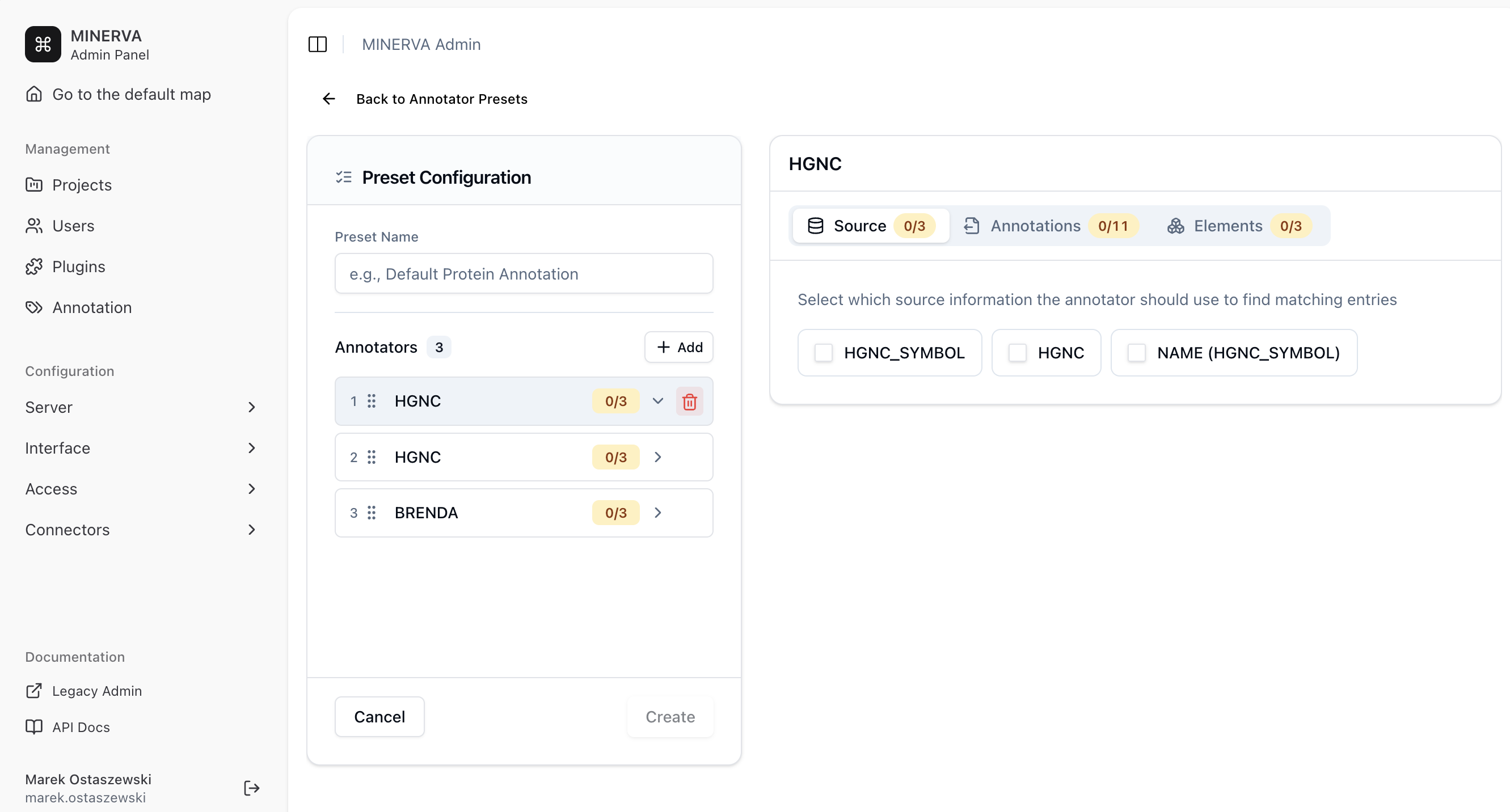 |
Image above illustrates an annotator preset with two HGNC annotators and one BRENDA annotator. When an annotator is selected, its configuration is displayed in the right panel. Missing information is highlighted in yellow and corresponds to Source, Annotation and Elements sections that need to be configured.
To configure an annotator, you need to select sources it will use to retrieve information, annotations it will retrieve, and element types it will annotate. In the image below, three annotators have complete information, with BRENDA annotator using one source, retrieves one annotation and provides it for one element type (Protein). Numbers next to element names indicate which other annotators provide information for this element. In the image, Annotator #1 updates Gene and RNA, and Annotator #2 - Protein.
| Complete configuration preset |
|---|
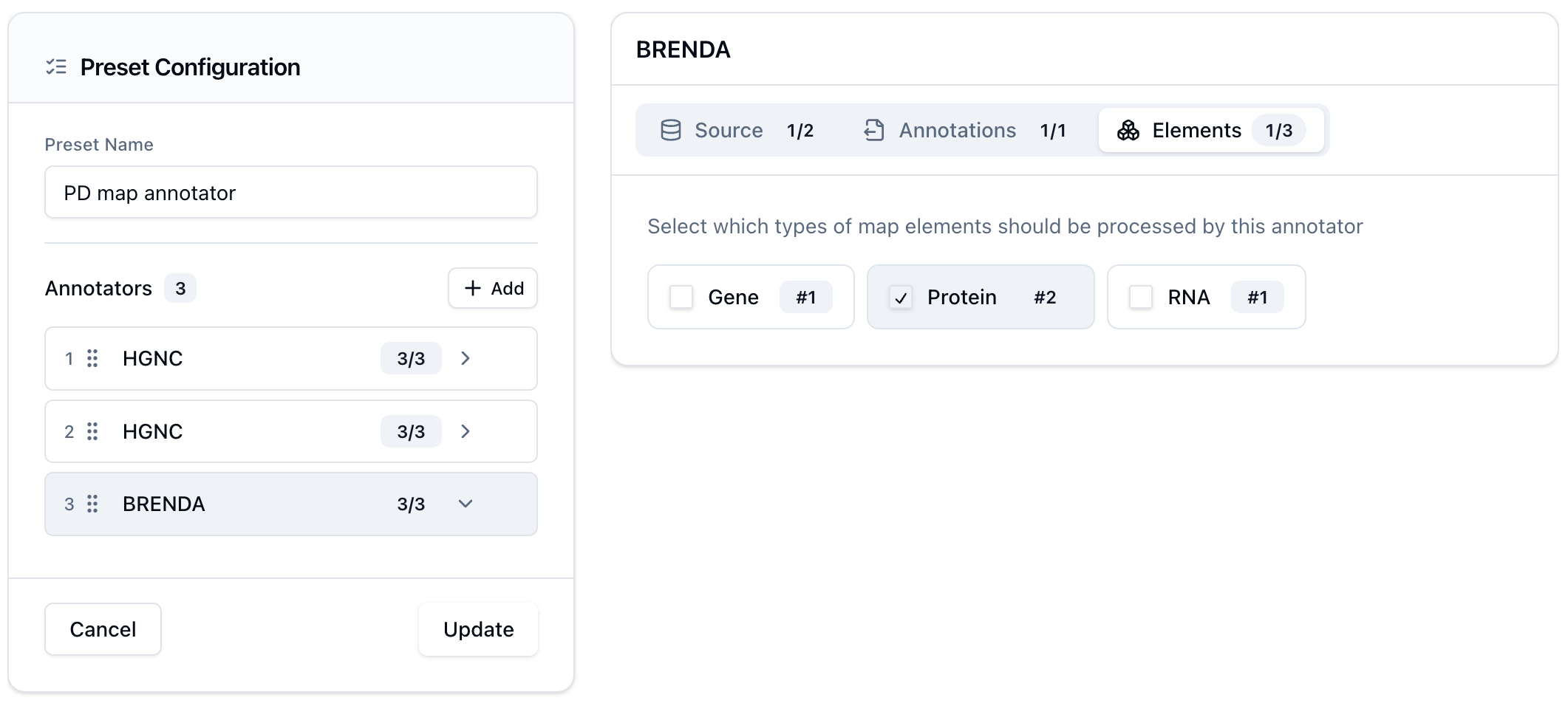 |
Multiple versions of the same annotator, pt2 In the image above, note that two HGNC annotators (#1 and #2) update two separate subsets of elements. This way the same type of annotator can be used to provide different annotations to different types of elements.
Order of annotators is important
Annotators work in order they are arranged.
For example:
If the preset in the image above is used, if your diagrams contains just elements names NAME (HGNC Symbol), then BRENDA annotator, which relies on UniProt identifiers, has to be positioned after an annotator that provides UniProt identifiers. In the example above - it’s annotator #2.